https://mykawaiiempire.blogspot.com/search/label/tutorials https://mykawaiiempire.blogspot.com/search/label/beauty https://mykawaiiempire.blogspot.com/search/label/lifestyle https://mykawaiiempire.blogspot.com/search/label/cutestuff Image Map
Showing posts with label tutorials. Show all posts

Make nail polish remover at home


Hello my kawaii dolls! So we all know that frequent use of artificial nail remover "acetone" hurts the health of nails and causes cracking, discolouring and weakness by the time. So today I will show you how to make your handmade nail polish remover.
It's easy and simple you can prepare it yourself at home, all you have to do is following these steps!


Natural nail polish remover with lemon and vinegar
♦♦♦
You can make natural nail polish remover by putting your fingers in a mixture of lemon juice and vinegar for 20 seconds, then rub your nail with a piece of cotton to remove the nail polish easily, and preferably you have to put your nails in a warm water after removing the paint.


 Natural nail polish remover with lemon and warm water
♦♦♦
There is another way to remove your nail polish naturally without using acetone,and it's lemon and warm water, all you should do is placing your fingers in a bowl with warm water for 5 to 6 minutes until the nail polish become soft, then rub the paint with slices of lemon.

NB : If you don't have lemon, you can use any other acidic fruit like oranges.


Toothpaste
♦♦♦
Toothpaste works great as a nail polish remover, all you have to do is to put a little amount of the putty on the fingernail and remove it with cotton, but don't let the putty dry because it will not have the same efficacy.


I tried my best to do this post so I hope that it has helped you! See you in the next post 


Cute backgrounds for you ♡


Hello my darlings, a lot of people have been asking me where do I get all of my cute backgrounds, so I decided to put all of them in this post! I hope you guys find them kawaii!


♥ If you liked this collection please leave a comment below, it would make me very happy 


How to make your cursor in Picmonkey


Hello readers, sorry for not being active these days, anyway today I'll teach you how to make your own cursor using Picmonkey, so follow these steps to get your cursor ready for use!


1. Download the icon you want to use for your cursor, here's a bunch of icons you can save!


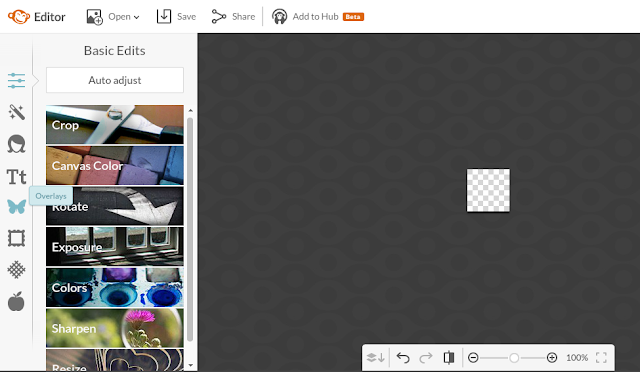
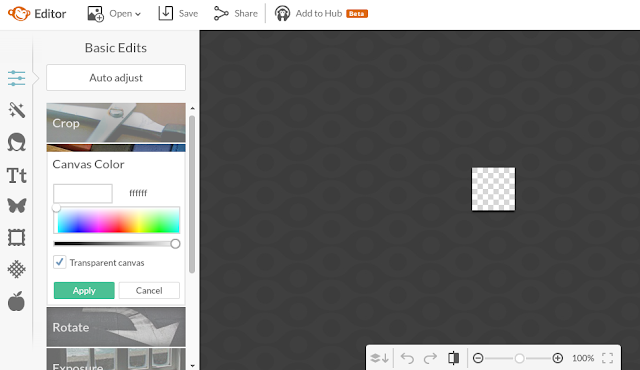
2. Go to Picmonkey Design Custom, then enter the size of your cursor (32x32/64x64/72x72 are the perfect sizes to use for a cursor). For me I chose 64x64


3. Click on "Transparent canvas" because the cursor should be transparent.


4. Click on the the butterfly (Overlays) Add your own Open the icon you saved.


5. Now you can edit your cursor the way you want (add a text, sparkles, hearts...), this is the one I just edited.


6. Save your image now, make sure to save it as png.

To use the cursor in your blog :

Go to your Blogger Dashboard Template Edit HTML
Find the </head> tag
Just before </head> paste the following code :

<style> body, a, a:hover { cursor:url(Your cursor url), auto }</style>

Now, you've made your own cursor, leave a comment and tell if this tutorial worked well on your blog or if you have any question feel free to drop it below! 


Cute Back To Top buttons


Hello my Kawaiicuties miss you so much 
SoI was thinking about what to post for you today and an idea suddenly came to my mind!
Why not making a few cute "Back To Top buttonsfor my Kawaiicuties?
Okay here we go! 
These Back to top buttons are made by me!  
Leave a comment below please if you use one of these buttons so I can see them in action 


To use these Back To Top buttons follow these steps :

Log on your Blogspot, go to Template > Edit HTML > Search for <head>  just below the <head> tag place this code below : 
<script src='http://ajax.googleapis.com/ajax/libs/jquery/2.0.0/jquery.min.js'></script>
Save your template then :
Click on the photo you want to use as your back to top button
Copy it's link
• Go to Layout > click Add a Gadget > select an HTML/Javascript > copy and paste the code below
Change the highlighted url in red with the url of the photo you want to use.

<!--Smooth Back to Top Button Start--> <script> jQuery(document).ready(function() { var offset = 220; var duration = 500; jQuery(window).scroll(function() { if (jQuery(this).scrollTop() > offset) { jQuery('.back-to-top').fadeIn(duration); } else { jQuery('.back-to-top').fadeOut(duration); } }); jQuery('.back-to-top').click(function(event) { event.preventDefault(); jQuery('html, body').animate({scrollTop: 0}, duration); return false; }) }); </script> <style> div#page { max-width: 900px; margin-left: auto; margin-right: auto; padding: 20px; } .back-to-top { position: fixed; bottom: 2em; right: 0px; text-decoration: none; color: #000000; font-size: 12px; padding: 1em; display: none; } .back-to-top:hover { text-decoration: none; } </style> <a href="#" class="back-to-top"><img src="https://blogger.googleusercontent.com/img/b/R29vZ2xl/AVvXsEj9I9Fp_IEbk3py_G3LRZT3XTNZVhjQ7klEItP19okGUoXJXXOgVu2Uki4Vsh2qkmWqInog0dPw1G3dYmm2QzaMjd7zqLJbOPXdlMFjTIatuxm4Wk9VpQ1Oeq_OMsKqQoCIDpyH-gunqLVK/s1600/3b.png" alt="Back to Top" / ></a> <!--Smooth Back to Top Button End-->